How to Create and Optimize Your Robots.txt File
Key Takeaways Think of your robots.txt file as your site’s GPS. It tells web crawlers for search engines like Google or Bing (and now AI) where to look and what to index. That’s significant in today’s search world. Yet, it’s often an overlooked part of technical SEO. Many treat...
 Tekef
Tekef

Key Takeaways
Robots.txt is a plain text file in your root directory that tells search engine and AI crawlers which pages on your site to crawl and which to skip. By guiding bots away from technical clutter and low-value pages, you make sure they spend their time on the important, high-value content that drives results. The four AI crawlers most worth knowing (GPTBot, ClaudeBot, Google-Extended, and CCBot) respect robots.txt directives and can be blocked individually with their user-agent strings. Common robots.txt mistakes include using disallow: / on a live site, blocking CSS or JavaScript files (which hurts rendering), and confusing disallow with noindex, since a disallowed page can still be indexed if linked externally.Think of your robots.txt file as your site’s GPS.
It tells web crawlers for search engines like Google or Bing (and now AI) where to look and what to index. That’s significant in today’s search world. Yet, it’s often an overlooked part of technical SEO.
Many treat robots.txt with a set-it-and-forget-it mentality, not realizing the toll that can take on search visibility.
With AI now claiming top positions on the search engine results pages (SERPs), the right robots.txt configuration is more important than ever.
To help you stay ahead, I’ve put together this refresher on how to create a robots.txt file that promotes modern-day visibility and delivers real business results.
What Is a Robots.txt File?
The robots.txt file, also known as the robots exclusion protocol or standard, is a text file that tells web robots (often search engine crawlers and AI scrapers) which pages on your site to crawl.
It also tells web robots which pages not to crawl.
Let’s say a search engine is about to visit a site. Before it visits the target page, it will check the robots.txt for instructions.
There are different types of robots.txt files, so let’s look at a few different examples of what they look like.
Let’s say the search engine finds this example robots.txt file:
This is the basic skeleton of a robots.txt file.
The asterisk after “user-agent” indicates that the robots.txt file applies to all web robots visiting the site.
The slash after “Disallow” tells the robot not to visit any pages on the site. However, it’s important to note that disallowing a page won’t prevent it from being indexed if external links are pointing to that page.
Why Robots.txt Matters for SEO
You might wonder why anyone would want to stop web robots from visiting their site.
After all, one of the major goals of traditional and AI SEO is to get search engine or AI bots to crawl your site easily, thereby increasing your visibility.
That’s where the secret to this SEO hack comes in.
You probably have a lot of pages on your site, right? Even if you don’t think you do, check. You might be surprised.
If a search engine crawls your site, it’ll crawl every single page.
And if you have a lot of pages, it’ll take the search engine bot a while to crawl them. That can negatively affect your ranking.
That’s because Googlebot (Google’s search engine bot) has a “crawl budget.” This breaks down into two parts.
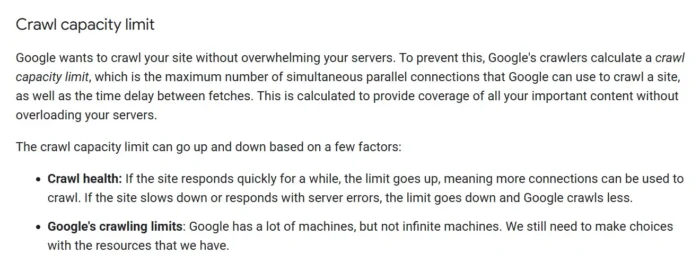
The first is the crawl capacity limit, which is the maximum number of connections Google can use to crawl a site at any given time. Google goes into more detail here:
The second part is crawl demand, which is essentially Google’s appetite for your content. It comes down to how popular your pages are and how often you update them. Here’s a deeper explanation from Google:
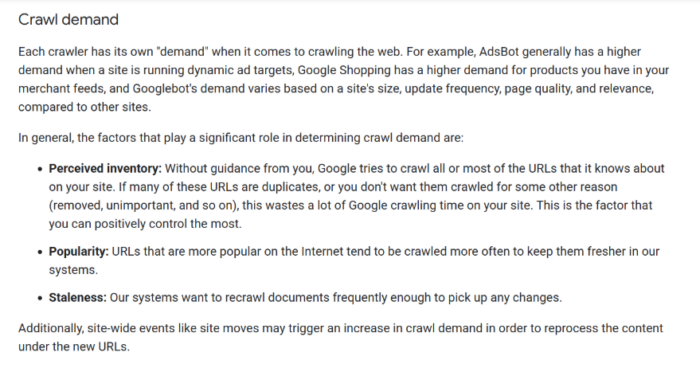
Basically, crawl budget is “the number of URLs Googlebot can and wants to crawl.”
You want to help Googlebot spend its crawl budget for your site as efficiently as possible. That means you want it crawling your most valuable pages.
To make sure you’re leading bots to the right places, Google advises minimizing these common drains on your crawling resources:
Faceted navigation: URL parameters for sorting and filtering can create an “infinite space” that traps bots in a maze of redundant pages. Duplicate content: When the same information exists across multiple URLs, consolidate them so crawlers can focus on your unique content. Hurdles and dead ends: Soft 404 errors and long redirect chains waste crawl demand, forcing bots to work harder for no reward. Server performance: If your site responds slowly, Google may not be able to read as much content from your site.OK, let’s come back to robots.txt.
A well-structured robots.txt page tells search engine bots (and especially Googlebot) to avoid certain pages.
Think about the implications. By curating your robots.txt file, you’re highlighting your best work. You’re effectively steering the bots away from technical clutter and toward your most valuable content.
In other words, your robots.txt helps make sure that every second a bot spends on your domain is a worthwhile one. It’s the difference between a bot wandering aimlessly through your digital storage and one that heads straight for the pages that drive results.
Intrigued by the power of robots.txt? Let’s talk about how to create a robots.txt file and use it properly.
How to Create a Robots.txt File
Using robots.txt effectively starts with getting the basics right. Follow these steps to create a robots.txt file that gets your “website GPS” off to the right start.
Step 1: Open a Plain Text Editor
You can create a new robots.txt file by using a plain text editor, like Notepad on PC and TextEdit on Mac. Whatever you use, make sure it’s a plain text editor.
If you already have a robots.txt file, make sure you delete the text (but not the file) to give yourself a fresh start.
Step 2: Locate and Format Your File Properly
To start, you must name your file “robots.txt.” That may seem obvious, but it’s so important that it’s worth stating. If you get your naming wrong, nothing else that you do will matter.
Also note that each site can have only one robots.txt file. That file must also be placed at the root domain of the site it applies to.
Google provides more context here (we also summarize the key takeaways below):
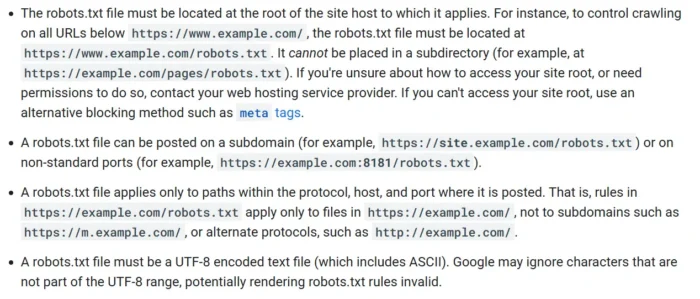
Think of it as the technical fine print. Here are the three biggest things to keep in mind from Google’s guidance:
Location is everything: Your file must live at the root of your host (e.g., yoursite.com/robots.txt). If you tuck it away in a subfolder, crawlers simply won’t look for it. Stay in your lane: A robots.txt file only has authority over its specific protocol (HTTP vs. HTTPS), subdomain, and port. If you have a mobile site (m.yoursite.com), it needs its own dedicated file. Stick to UTF-8: The file must be a plain text file with UTF-8 encoding. If you use non-standard characters, Google might find your rules invalid and ignore them entirely.Step 3: Write Your Robots.txt Rules
I’m going to show you how to set up a simple robot.txt file, putting the rules we mentioned above into action.
Every robots.txt file starts with the user-agent directive. This defines which crawlbot is subject to the rule. This example from Google’s robots.txt documentation sets Googlebot as the user.
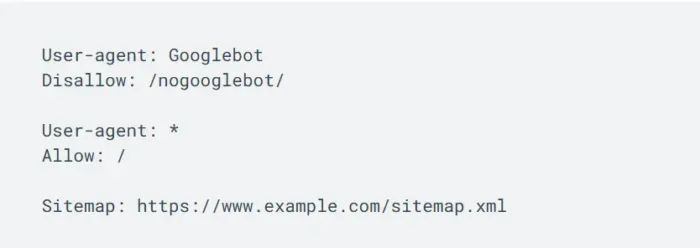
The example also defines two rules: allow and disallow. They enable the robots.txt file to guide Googlebot toward any page under the root domain www.example.com, except for those with the /nogooglebot/ URL path. All other crawlbots are free to crawl any page within the site.
I know it looks super simple, but these two lines are already doing a lot.
This rule also links to an XML sitemap, but that’s not strictly necessary. It serves as a universal map for all crawlers, including AI. It’s especially important for larger sites, as it gives bots a direct path to your most valuable pages without them having to hunt for links.
Voila, you now have a basic robots.txt file with simple (but effective) rules in place.
As you get more familiar with using robots.txt, there are more rules you can use to your advantage. Google lists them all, along with what they do, here.
Step 4: Save and Upload to Your Root Directory
To do its job, your robots.txt file needs to be uploaded to your site’s root directory. How you do this depends on your hosting platform and your site architecture.
A common exception to this is WordPress, which can generate its own virtual robots.txt file when you launch a site. To change it, you may need a plugin or manual upload to override it.
When in doubt, though, contact your hosting platform or search through their support documentation for upload methods. You can usually do this by navigating to their help articles or knowledge base and searching “upload files [hosting company name].”
How to Block AI Crawlers with Robots.txt
Blocking AI crawlers gives you more control over how your content is used.
Some site owners do it to limit AI training use. Others do it to reduce crawler load, protect gated-style content that accidentally became public, or keep competitors from repackaging their work through AI tools.
The trade-off is visibility. If you block everything, you may protect more of your content, but you can also reduce your chances of showing up in AI-generated results.
The major AI crawlers worth knowing are GPTBot (OpenAI), ClaudeBot (Anthropic), Google-Extended (Google), and CCBot (Common Crawl). All four support robots.txt controls, and each publishes a specific user-agent string you can target.
CCBot is one that many people overlook, even though its public dataset powers dozens of open-source models, making it too impactful to leave out.
To block each crawler individually, list each user-agent with its own disallow rule:
User-agent: GPTBot
Disallow: /
User-agent: ClaudeBot
Disallow: /
User-agent: Google-Extended
Disallow: /
User-agent: CCBot
Disallow: /
The major AI crawlers worth knowing span both training and search functions. OpenAI runs GPTBot for training and OAI-SearchBot for search. Anthropic runs ClaudeBot for training and Claude-SearchBot for search. Google uses Google-Extended for training. CCBot, run by Common Crawl, powers dozens of open-source models, so it’s worth including even though many people overlook it.
That distinction matters in practice. Blocking GPTBot does not block OAI-SearchBot, and blocking ClaudeBot does not block Claude-SearchBot. If you want to stop both training and search crawling, you need separate rules for each bot.
All of these crawlers support robots.txt controls, and each publishes a specific user-agent string you can target. To block them individually, list each user-agent with its own disallow rule:
User-agent: GPTBot
Disallow: /
User-agent: OAI-SearchBot
Disallow: /
User-agent: ClaudeBot
Disallow: /
User-agent: Claude-SearchBot
Disallow: /
User-agent: Google-Extended Disallow:
User-agent: CCBot Disallow: /
If you’d rather block every non-search bot at once, flip the logic. Disallow everything by default, then explicitly allow the search engines you want to keep.
User-agent: *
Disallow: /
User-agent: Googlebot
|Allow: /
User-agent: Bingbot
Allow: /
Note that Google-Extended is a separate token from Googlebot. Blocking it opts you out of Google’s AI training data and has zero effect on how you rank in regular Google Search.
Keep in mind that while blocking AI crawlers stops your content from feeding model training, it also reduces your chances of getting cited in AI answers. It’s important to proceed with caution if you want to implement these rules.
If AI visibility is part of your strategy, use an llms.txt file for SEO to guide AI systems toward your best content rather than locking them out entirely, as you would with your robots.txt file.
How to Test Your Robots.txt File
After your robots.txt file goes live, confirm Google can read it correctly. Google retired the old standalone robots.txt Tester in late 2023 and replaced it with the robots.txt report inside Google Search Console.
To find it, open Search Console, pick your property, and click Settings in the left sidebar. The report shows which robots.txt files Google has fetched for your site, when each was last crawled, and any syntax errors or warnings it hit during parsing. If you’ve just pushed an update, you can request a recrawl right from that screen.
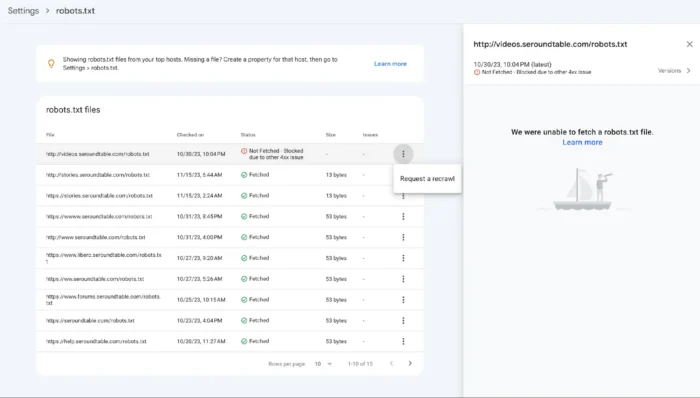
To test how a specific URL behaves under your current rules, switch to Search Console’s URL Inspection tool. It tells you whether Googlebot can access the page or whether a directive is blocking it.
This move is useful for catching a misplaced disallow rule before it tanks an important page. Make this part of your regular technical SEO site audit.

Another pro tip: Type the root domain followed by /robots.txt in your browser to view that site’s robots.txt file. It’s a quick way to see how competitors structure their rules, which directories they protect, and which AI crawlers they’re blocking.
Pair it with a full SEO audit for a complete picture of where you can improve and overtake your competition.
Common Robots.txt Mistakes to Avoid
Robots.txt mistakes are easy to make and hard to spot until traffic drops. Even small errors can have site-wide consequences.
Here are the most common missteps to watch for:
Using disallow: / on a live site. This single line blocks every URL on your site from every crawler, including your homepage. It usually slips into production when a staging file gets pushed live without being updated, so be sure to review your robots.txt after every migration. Blocking CSS and JavaScript. Googlebot renders your pages the same way a browser does, so it needs access to your CSS, JavaScript, and image files to evaluate them properly. Blocking these resources can force Google to crawl your site “blind,” resulting in demoted rankings. Confusing disallow with noindex. A disallow rule stops crawling but doesn’t prevent indexing. A blocked URL can still appear in Google Search if it’s linked from another site. To keep a page out of search results, use a noindex meta tag or password-protect the page instead. Leaving the file empty or missing. A missing robots.txt won’t break your site. Google will assume everything is crawlable, but you lose the ability to point crawlers to your sitemap, manage crawl budget, or opt out of AI crawlers. Build it into your standing SEO checklist so it’s not an afterthought.FAQs
How does robots.txt work?
Crawlers check yoursite.com/robots.txt before crawling your pages. The file uses user-agent and disallow directives to tell them which paths to skip. Compliance is voluntary, but major crawlers respect it.
Do I need a robots.txt file?
Not necessarily. Google can crawl your site without one, but the file lets you control crawl budget and block AI training crawlers, which is worth doing even for small sites.
What should a robots.txt file look like?
A minimal file that allows all crawlers and points to your sitemap looks like this:
User-agent: *
Disallow:
Sitemap: https://yoursite.com/sitemap.xml
Add disallow rules for any directories you don’t want crawled, like /wp-admin/ or /checkout/. Use a separate user-agent block per crawler you want to give different rules to.
How do I edit robots.txt in WordPress?
The easiest path is an SEO plugin like Yoast, which includes a robots.txt editor in its settings. Otherwise, edit the file via FTP or your hosting file manager and upload it to your site’s root directory.
How do I fix “Indexed, though blocked by robots.txt?”
This warning means Google indexed a URL it couldn’t crawl. Either remove the disallow rule so Google can read your page’s noindex tag, or password-protect (or remove) the page entirely.
Conclusion
Robots.txt is a small file with a big impact on how your site shows up across the web. A few well-placed directives can keep low-value pages out of search results and decide whether AI systems get to train on your content.
Already have a robots.txt file? Audit it against the mistakes covered above.
Starting from scratch? Build it using the steps in this guide and test it in Search Console before calling it done.
The conversation around robots.txt has shifted. What started as a tool for managing Googlebot and the SERPs now extends to handling AI’s rise in search and emerging standards like llms.txt.
Whatever comes next, robots.txt remains a foundational part of staying in control of your content.