
How to Check Backlinks in Google Search Console
If you’ve landed on this page, you already know Google Search Console is the right place to check your backlinks. The problem is knowing where to start and what to look for once you are inside it, right? When...
 Koichiko
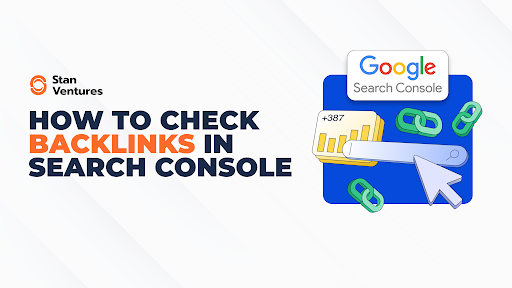
If you’ve landed on this page, you already know Google Search Console is the right place to check your backlinks. The problem is knowing where to start and what to look for once you are inside it, right?
When it comes to GSC, the data isn’t always obvious, especially if you don’t know the tool’s workflow. The good news is checking backlinks in Google Search Console is a cakewalk once you get the hang of it.

Let me walk you through exactly where to find backlink data in Google Search Console, how to interpret what you see, and how to use it to make informed link building decisions.
How to Check Backlinks in Google Search Console: Step-by-Step Guide
Check out the practical demo of how to check backlinks in Google Search Console below.
Here is how you can check the list of Top Linking Sites:
Step 1: Choose Your Property
Sign in to your Google Search Console account. From the GSC dashboard, choose the website you want to analyze from the property dropdown in the top-left corner.

Step 2: Navigate to Links Report
In the left-hand sidebar, scroll down and click “Links”. This opens the Links overview, where Google displays both internal and external link data.

Under the “External links” section, you will find three core reports.
Top linked pages: Shows which URLs on your site attract the most backlinks. Top linking sites: Lists the domains that link to your website frequently Top linking text: Displays the most common anchor text used in backlinks pointing to your site, helping you spot over-optimized anchors, irrelevant keywords and spammy exact-match terms that can potentially hurt your website’s SEO.
Step 3: Expand “Top Linking Sites” List
Click “More” under “Top Linking Sites” to get a bigger picture of the domains linking back to your website.

Step 4: Inspect & Export Backlink Data
Analyze your website’s backlink profile in detail or export the information to view it offline in a preferred format.

Pro Tip: Remember that the lists you see in your browser are limited to the top 1,000 rows. If you want more data, click the “Export External Links” button in the top-right corner to download a sample of up to 100,000 links.

How to Analyze Backlinks Using GSC Data?
Once you export backlink data from Google Search Console, the goal is to evaluate quality, relevance and intent. Here’s how it works.
Check Context & Relevance: Review whether linking domains and pages align topically with your site and the content they point to. Identify Unnatural Link Patterns: Look for repeated anchor text, sudden link spikes, or clusters of links from similar domains that may signal manipulation. Prioritize Link Diversity: Identify URLs receiving links from only a small set of domains and prioritize broadening their link sources. Verify Link Distribution: Analyze how links are spread across key pages to ensure authority isn’t concentrated on a single URL.When Should You Use Google Search Console for Backlink Analysis?
Google Search Console is particularly useful for backlink checks when you need Google-verified backlink data to make specific SEO decisions.
Early-Stage SEO Audits: Use Google Search Console to understand which backlinks Google already recognizes before planning any link-building activity. Post Link-Building Validation: Review GSC after links go live to confirm Google has discovered and processed them. Manual Penalty or Spam Investigation: Analyze linking domains and anchor text patterns in GSC when investigating ranking drops or manual actions. Monitoring Natural Link Growth: Track backlink growth trends in GSC to see whether your content is earning links organically.Google Search Console vs Third-Party Backlink Tools
Website owners and SEOs constantly have questions around using Google Search Console vs. third-party tools like Ahrefs and Semrush for backlink analysis. In reality, it depends upon specific use cases.
Accuracy vs. Link Volume: Google Search Console shows a comparatively smaller set of links, but every link is Google-verified. On the other hand, third-party tools like Ahrefs and Semrush show more links, but not all of them are indexed by Google. When GSC is Enough: Prioritize GSC when validating real link impact or checking which links Google actually counts on when ranking your site. When to Use Third-Party Tools: GSC doesn’t show competitor insight. Use Ahrefs, Semrush, or Majestic when you focus on competitor backlink research or when you want to find new backlink opportunities for your website. How to Use GSC and Third-Party Tools Smartly: Use Google Search Console to get your website’s Google-verified backlink data. Leverage third-party tools to identify fresh backlink opportunities based on competitor insights. Bring the entire data to make informed decisions.What are the Common Mistakes to Avoid When Checking Backlinks in Google Search Console?
Most backlink analysis mistakes happen when you read GSC data without understanding its limitations. Make sure you avoid the mistakes mentioned below.
Assuming GSC shows all backlinks: Google Search Console only reports links Google has already processed, not every link pointing to your site. Ignoring no-follow links: No-follow links may not pass authority, but they still influence trust signals and help Google understand link patterns associated with your site. Treating link count as link quality: More links don’t mean better links if they come from irrelevant or low-visibility pages. Not pairing GSC data with performance metrics: Backlink data makes sense only when viewed alongside rankings, traffic, and page-level performance.Google Search Console gives you a clear, reliable view of how your backlink profile actually looks in Google’s eyes. It helps you identify meaningful SEO signals based on your backlink profile, verify which links are being recognized, and spot patterns that matter for improved performance in search.
While GSC doesn’t replace advanced SEO tools, it’s the place where you validate link quality, confirm progress, and make smarter decisions, without just relying on external data. When you treat Google Search Console as a baseline to check backlinks, you avoid guesswork and get another step closer to building a future-proof backlink strategy.
FAQs
Does Google Search Console show all backlinks to my site?
No. Google Search Console only shows links Google has crawled and indexed, not every backlink pointing to your site.
How often does Google Search Console update backlink data?
Backlink data in Google Search Console updates gradually, and not in real time. It may take anywhere from a few days to weeks for the links to show up in GSC, depending on crawl frequency and site authority.
Can Google Search Console help identify toxic or spammy backlinks?
Yes, but only at a surface level. GSC can show unusual domains or anchor patterns, but it does not specifically flag toxic links. You can use trusted tools like Ahrefs and Semrush for in-depth analysis. Once you identify harmful backlinks pointing to your site, you can disavow them using the Google Disavow Tool in GSC.
Is Google Search Console enough for a complete backlink audit?
No. GSC only shows Google-verified backlink data. However, it doesn’t provide competitor insights or missed link opportunities. You need third-party tools for that part of your backlink audit. So, GSC works best as a verification layer, not a standalone audit tool.
Why do some backlinks appear in third-party tools but not in Google Search Console?
Google only shows links it has crawled and added to its index. On the other hand, third-party tools often show links as soon as they discover them, regardless of whether they are evaluated by Google.
Ananyaa Venkat is a seasoned content specialist with over eight years of experience creating industry-focused content for diverse brands. At Stan Ventures, she blends SEO insight with strategic storytelling to shape a compelling brand voice. She has contributed to several leading SEO publications and stays attuned to evolving trends to ensure her content remains authoritative, relevant, and high-quality.

















![How Are Enterprise SEO Pros Measuring AI Overviews & LLMs? [Webinar] via @sejournal, @lorenbaker](https://cdn.searchenginejournal.com/wp-content/uploads/2026/09/ai-search-measurement-webinar-stat.png)