Windows 10 ESU Guide: How to Get Security Updates Through 2027
Learn how to enroll in Windows 10 Extended Security Updates, check eligibility, understand costs and fix common enrollment problems before October 2027.
 Netzender Editorial Team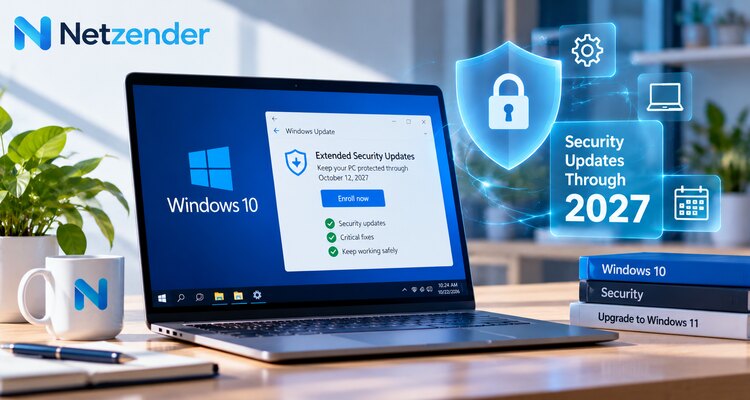
Windows 10 reached the end of regular support on October 14, 2025. That does not mean every Windows 10 computer immediately stopped working. It means Microsoft ended its standard stream of free security updates, technical support and feature maintenance for the operating system.
For people who still need time to move to Windows 11 or replace an older computer, Microsoft's Extended Security Updates (ESU) program offers an additional layer of protection. Eligible consumer devices can receive important and critical security updates through October 12, 2027.
But ESU is not the same as restoring full Windows 10 support. It does not provide new features, guarantee compatibility with every application or remove the need for a long-term upgrade plan.
This guide explains who qualifies, how to enroll, which payment options may appear and what to check when the enrollment button is missing.
What Is Windows 10 ESU?
Extended Security Updates is Microsoft's program for delivering selected security fixes to devices running an operating system after its regular support period ends. For Windows 10 consumers, ESU is a temporary bridge for people who are not ready to move to a supported operating system.
ESU focuses on security updates. It does not turn Windows 10 into a newly supported platform for feature development, and it is not a substitute for backups, updated applications or safe browsing practices.
The distinction matters: a computer may receive ESU security patches while some third-party software gradually ends Windows 10 support.
Windows 10 ESU Deadline: What Happens in October 2027?
Microsoft lists October 12, 2027 as the end of the consumer ESU program. After that date, consumer enrollment will no longer provide additional Windows 10 security coverage under this program.
The deadline is a reason to plan ahead, not a reason to panic. A Windows 10 PC can still be useful for certain tasks, but using an unsupported operating system for everyday internet access and sensitive accounts carries increasing risk over time.
Business and organizational ESU programs may have different terms and timelines. The instructions in this article primarily address the consumer program.
Windows 10 ESU Eligibility Requirements
Before attempting enrollment, check the following:
- Operating system: Your PC should be running Windows 10 version 22H2, the final Windows 10 feature update.
- Updates: Install the required Windows updates and restart when prompted.
- Account: You may need to sign in with an eligible Microsoft account during enrollment.
- Permissions: Use an administrator account where required.
- Region: Available enrollment methods and account requirements can vary by market, particularly within the European Economic Area.
- Device type: Consumer enrollment rules differ from those for commercially managed devices.
Microsoft may update prerequisites and enrollment details. Always confirm the latest requirements on the official Windows 10 ESU page before purchasing or changing account settings.
How to Enroll in Windows 10 ESU: Step by Step
Step 1: Check your Windows version
Press Windows + R, type winver and press Enter. Confirm that the version displayed is Windows 10 22H2.
If you are on an earlier version, open Settings → Update & Security → Windows Update and install the available updates. Back up important files before major system changes.
Step 2: Install pending security and servicing updates
In Windows Update, select Check for updates. Install the updates your device requires, then restart if requested.
A prerequisite update may be necessary before the ESU enrollment experience becomes available. Installing an update that prepares the system for ESU does not itself prove that your PC has enrolled.
Step 3: Look for the ESU enrollment option
Return to Settings → Update & Security → Windows Update. Eligible consumer PCs may display a link or prompt to enroll in Extended Security Updates.
Select the enrollment option and follow the instructions shown on your device. If you do not see the option, use the troubleshooting section below rather than downloading unofficial enrollment tools.
Step 4: Choose an available enrollment method
Depending on your region and eligibility, Microsoft has offered options such as enrollment associated with Windows settings backup, Microsoft Rewards points or a one-time purchase.
The choices shown on your own PC are more authoritative than a generic screenshot or a guide written for another country. Read the terms presented during enrollment before confirming.
Step 5: Complete enrollment and verify the result
Follow the on-screen process until Windows confirms enrollment. Return to Windows Update and check the device's ESU status.
Do not assume that signing into a Microsoft account, installing a prerequisite package or paying for an option means enrollment succeeded unless Windows confirms it.
How Much Does Windows 10 ESU Cost?
Microsoft has described multiple consumer enrollment paths, but their availability depends on location, account conditions and current program rules.
| Enrollment option | Potential cost | Important limitation |
|---|---|---|
| Eligible Windows settings backup route | No additional payment where offered | Requires meeting the applicable account and settings conditions |
| Microsoft Rewards redemption | 1,000 Rewards points where offered | Requires an eligible account and sufficient points |
| Paid consumer enrollment | US reference price: $30 | Taxes, local currency and availability may differ |
| Commercial or managed-device ESU | Separate licensing terms | Not the same as the consumer program |
Important: Do not assume that all three consumer choices are available in every country. The European Economic Area has distinct conditions, and Microsoft's terms may change. Use the enrollment experience displayed on your PC and the official Microsoft documentation to determine your actual options.
Can One ESU Enrollment Cover Multiple PCs?
Microsoft's consumer program describes coverage for up to ten eligible devices associated with the applicable license or account terms. This is not permission to enroll any ten computers regardless of ownership, eligibility or region.
If you manage several family PCs, verify each device's Windows version and enrollment status individually. Commercial devices may need a separate licensing approach.
Windows 10 ESU Enrollment Button Missing? Try These Fixes
1. Confirm Windows 10 22H2
Run winver and check the version. Older Windows 10 versions may not meet the consumer enrollment requirements.
2. Finish pending Windows updates
Open Windows Update, install outstanding updates and restart. Check again after the device completes any required servicing steps.
3. Check account and administrator requirements
Make sure the account used for enrollment meets Microsoft's requirements. A work-managed device may be subject to organizational policies that prevent consumer enrollment.
4. Check your region's enrollment terms
A guide written for the United States may not match the options available in Europe or elsewhere. If an expected free or Rewards option does not appear, check Microsoft's current regional instructions.
5. Distinguish prerequisites from completed enrollment
Some updates prepare Windows for ESU licensing. Their presence does not automatically activate security-update coverage. Confirm enrollment through the supported Windows interface.
6. Avoid unofficial activation scripts
Third-party tools that claim to unlock ESU may introduce security, licensing or reliability problems. Use Microsoft's documented enrollment path instead.
7. Contact the appropriate support channel
For a personally owned PC, use Microsoft's consumer support resources. For a work or school computer, contact your IT administrator because commercial enrollment may be managed centrally.
Consumer ESU vs. Commercial ESU
Consumer ESU is designed for eligible personal Windows 10 devices. Commercial ESU is intended for organizations that need to manage security coverage across business environments.
These programs should not be treated as interchangeable. They can differ in eligibility, deployment method, licensing, price and duration. If a computer is managed by an employer, school or IT service provider, do not attempt to replace its organizational enrollment with a personal account.
Windows 10 ESU vs. Windows 11: Which Should You Choose?
ESU can be a sensible short-term choice when a Windows 10 PC still meets your needs and you require additional time to plan a replacement. But it is not a permanent modernization strategy.
| Situation | Practical next step |
|---|---|
| Your PC meets Windows 11 requirements | Evaluate upgrading to Windows 11 after backing up important data |
| Your PC cannot run Windows 11 officially | Consider consumer ESU while planning a supported replacement |
| Your PC handles sensitive work or financial accounts | Prioritize a supported OS, current applications and strong account security |
| Your device is managed by an organization | Ask IT about commercial ESU and migration plans |
| You use the PC mainly offline | Assess actual risk, software compatibility and long-term maintenance needs |
When replacing a device, consider performance, repairability, battery health and your software requirements rather than buying solely because of an AI marketing label. For background on modern hardware, see our guide to on-device AI and NPUs.
Security Checklist for Staying on Windows 10 Temporarily
ESU reduces some security risks, but no update program eliminates every threat. Use this checklist while planning your transition:
- Confirm that Windows reports successful ESU enrollment.
- Keep Windows Update enabled and review update failures.
- Maintain reliable backups of important files.
- Update browsers, password managers and other internet-facing applications.
- Enable multifactor authentication on important accounts.
- Remove software you no longer need.
- Avoid unsupported activation tools and suspicious downloads.
- Set a realistic date to upgrade or replace the device before consumer ESU ends.
For more everyday protection measures, read our practical online privacy checklist.
Frequently Asked Questions
Is Windows 10 still safe to use in 2026?
Risk depends on the device, applications, network exposure and security practices. An eligible PC enrolled in ESU can continue receiving selected security fixes, but Windows 10 no longer has regular full support. A supported operating system is the stronger long-term option.
Is Windows 10 ESU free?
Microsoft offers no-additional-payment enrollment routes for some eligible consumers, but availability and conditions vary by region. Other options may involve Rewards points or a purchase. Check what your device actually offers.
Does ESU extend Windows 10 support to 2027?
It extends access to specified security updates for eligible consumer devices through October 12, 2027. It does not restore normal feature updates or general support.
Do I need a Microsoft account?
Consumer enrollment can require a Microsoft account, with regional differences in applicable conditions. Check Microsoft's current instructions and the options displayed on your PC.
Why can't I find the ESU Enroll button?
Common possibilities include an unsupported Windows version, missing updates, account or device-management restrictions, and regional eligibility differences. Start with Windows Update and Microsoft's official enrollment guidance.
Will ESU make my computer compatible with Windows 11?
No. ESU delivers eligible security updates to Windows 10. It does not change your hardware's Windows 11 compatibility.
What happens after October 12, 2027?
The consumer ESU coverage period ends. Plan to move to a supported operating system or replace the device rather than assuming another extension will be offered.
Final Recommendation
If your Windows 10 PC is still important to you, check its eligibility for ESU now and verify enrollment rather than waiting until the next security problem. Treat ESU as a temporary safeguard while you plan a supported long-term setup.
For most people, the right sequence is straightforward: back up your files, install required updates, review the official enrollment choices, confirm coverage and establish an upgrade timeline before October 2027.
Official Sources
- Microsoft — Windows 10 Extended Security Updates. Official consumer program information, eligibility, enrollment options and deadline.
- Microsoft Support — Windows 10 support ended October 14, 2025. Background on end of regular support and available options.
Last reviewed: October 22, 2026. Program terms, availability and regional enrollment options may change. Confirm details with Microsoft before making a purchase or enrollment decision.