Gemini in Google Sheets: How to Analyze BigQuery Data with AI in 2026
Learn how Gemini analyzes BigQuery data in Connected Sheets, who is eligible, and how to build verified, refreshable business dashboards.
 Netzender Editorial Team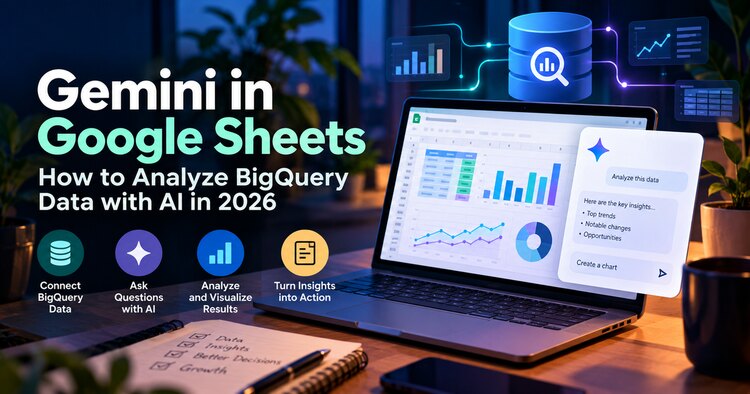
Google is bringing a more conversational way to explore BigQuery data into Google Sheets. Announced on October 19, 2026, the feature lets eligible users ask Gemini questions about a connected dataset and build refreshable reports without writing every query by hand. Here is what changed, who can access it, and how to try it responsibly.
What changed on October 19, 2026
Google announced conversational analysis of BigQuery data directly inside Google Sheets using Gemini. The important distinction is that this is not simply an AI summary of a small spreadsheet range: when a spreadsheet is connected to BigQuery through Connected Sheets, Gemini can query the underlying dataset. Google says users can ask follow-up questions and request connected charts, pivot tables, database formulas, and dashboard-style views. The rollout began October 19, 2026 and can take up to 15 days to appear.
Who can use it—and what you need
You need a spreadsheet connected to BigQuery, permission to query the connected data, and an eligible Gemini plan. Google lists Business Standard and Plus, Enterprise Standard and Plus, Google AI Pro and Ultra, Google AI Pro for Education, and AI Expanded Access among eligible editions. Availability may vary during rollout. This is different from general Gemini assistance in ordinary Google Sheets, so having a Gemini button alone does not guarantee BigQuery conversational analysis. You also need an appropriate Google Cloud project and BigQuery access.
Step 1: Prepare your BigQuery data
Start with a reliable dataset: consistent field names, documented metrics, sensible date types, and access controls. For a sales example, confirm the definition of net revenue, returns, currency, and reporting timezone before asking an AI assistant to compare periods. BigQuery permissions still matter. Do not share sensitive tables merely to make a demo work. Check whether querying large datasets could incur cloud charges under your organization's billing arrangements.
Step 2: Connect Google Sheets to BigQuery
In Google Sheets on the web, Google's Connected Sheets documentation describes navigating to Data, then Data connectors, then Connect to BigQuery. Choose an eligible billing-enabled Google Cloud project, select a dataset or saved query, and connect. Your organization's permissions and UI may differ. Alternatively, an analyst can open a BigQuery table or saved query in Connected Sheets from the Google Cloud console. Confirm that the resulting spreadsheet actually shows a connected BigQuery source before proceeding.
Step 3: Open Gemini and ask a focused question
Open the Gemini side panel in your connected spreadsheet. Begin with a question that names a metric, date range, and dimension, such as: 'What was net revenue by region in Q3 2026, excluding refunded orders?' Follow up with: 'How does that compare with Q3 2025, using the same filters?' Ask Gemini to explain its assumptions and verify those assumptions against your data dictionary. Google describes this conversational workflow, but individual outputs can still require review.
Step 4: Build a refreshable report
Once the analysis looks right, request a structured report: 'Create a quarterly sales review with monthly revenue trends, a region breakdown, and our top ten products.' Google says Gemini can present a plan for review and then create a new sheet tab with native connected objects, including charts and pivot tables. Inspect the plan before accepting it. Check chart labels, aggregation rules, and any scheduled refresh settings. A dashboard is useful only when its definitions stay consistent.
Five example prompts for business teams
Try these prompts, adjusting them to your schema: (1) 'Compare net sales this quarter with the same quarter last year by region.' (2) 'Which ten products contributed most to the revenue change?' (3) 'Show monthly order volume and average order value for the last 12 complete months.' (4) 'Create a pivot table of support tickets by category and priority.' (5) 'Build a dashboard of revenue, order count, and refunds, and tell me which filters you used.' Never assume a field exists or that an AI-generated result is correct without validation.
How it differs from standard Google Sheets AI
Standard Gemini features in Sheets can help with common spreadsheet tasks, but the October 19 announcement specifically concerns conversational analysis over a BigQuery-connected dataset. The data remains in BigQuery for the connected analysis workflow; users need the relevant permissions. This distinction matters for teams that previously exported CSV files, manually copied data, or worked around row limits by sampling. Connected Sheets offers a familiar interface while using BigQuery for underlying queries.
Common problems and how to troubleshoot
If Gemini cannot access the data, confirm that you are using a Connected Sheet rather than an ordinary imported table. Check BigQuery permissions, eligible edition, organization policies, and rollout timing. If results seem wrong, review metric definitions, date boundaries, null values, and whether a query applies the intended filters. If a report is slow or unexpectedly costly, ask your data team to inspect query details and optimize the source. Do not publish unverified financial conclusions.
Security, governance, and cost checklist
Treat Gemini as an analysis assistant, not a replacement for data governance. Apply least-privilege BigQuery permissions, use approved datasets, and validate generated charts against trusted reports. Connected Sheets can run BigQuery queries when users refresh or interact with connected objects, so monitor query activity and project billing. Check company policies before entering confidential questions. For consequential reporting, retain a human reviewer and record the exact metric definitions used.
Who benefits most?
Small business teams with modest datasets may find ordinary Sheets sufficient. The new feature becomes more compelling when data already lives in BigQuery and business users need self-service questions without waiting for every one-off SQL report. Analysts can provide curated datasets and definitions, while operations, marketing, and finance teams explore them through a familiar spreadsheet. The biggest benefit is reducing friction between governed data and routine decisions, not eliminating the need for analysts.
Frequently asked questions
Is it free? Not universally: access depends on eligible plans, permissions, and potentially Google Cloud costs. Does it work with any Google Sheet? No, the announced BigQuery workflow requires a connected spreadsheet. Does Gemini query all the data? Google says it queries the underlying BigQuery dataset, rather than only the rows visible in Sheets. Can it make dashboards? Google describes connected charts, pivot tables, formulas, and dashboard-style tabs, subject to access and rollout. Should you trust every answer? No—verify figures and assumptions.
Final takeaway
Gemini's new BigQuery workflow makes Google Sheets a more approachable front end for business analysis. Start with a clean connected dataset, use precise prompts, review the proposed analysis plan, and verify important numbers. Teams that already maintain trustworthy BigQuery data may gain the most from the update. For more AI workflows, read Netzender's Gemini small business tools guide and GitHub Copilot in Microsoft Teams guide.