Google Docs Live: Create Documents with Voice and Gemini in 2026
Google Docs Live brings voice-first Gemini drafting to iPhone and Android. Learn how it works, eligible plans, practical prompts, privacy checks, and what to do if it is missing.
 Netzender Editorial Team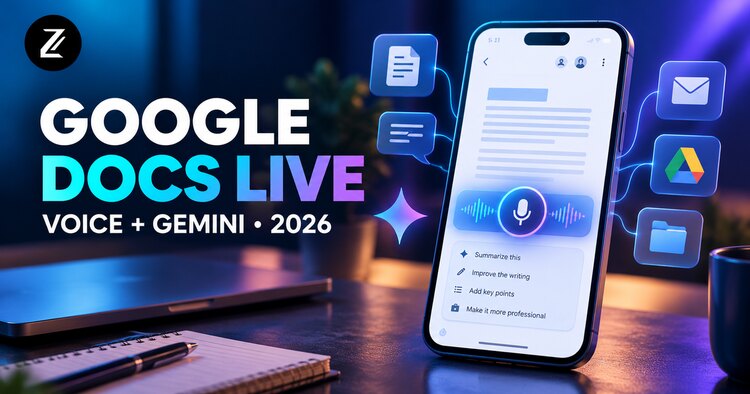
Google Docs Live brings conversational, voice-first drafting to the Google Docs mobile app. Instead of dictating every sentence, you can explain the document you need, discuss the details with Gemini, and get a structured first draft. On October 21, 2026, Google announced a rollout to eligible Workspace users on Android and iOS. Availability depends on your plan and account configuration, so the feature may not appear for everyone immediately.
What is Google Docs Live?
Docs Live is a voice-based AI writing partner within Google Docs. Its purpose is not simply to transcribe your speech word for word. You describe a goal, audience, and source material; Gemini helps organize those ideas into a document. Google highlights project updates, feature proposals, customer pitches, event plans, and presentation talking points as potential uses.
Where access is enabled, Docs Live can use relevant context from Gmail, Google Drive, Google Chat, and the web to help you assemble a draft. That does not mean every connected item is automatically reliable or appropriate to include. Review any retrieved detail before you share the result.
Who can use Docs Live in 2026?
Google's October 21 announcement lists these eligible subscriptions:
- Google Workspace Business Standard and Business Plus.
- Google Workspace Enterprise Standard and Enterprise Plus.
- Google AI Pro and Google AI Ultra for consumers.
- Google AI Pro for Education and the AI Expanded Access add-on.
Docs Live is offered in the Google Docs mobile app for Android and iOS. For organizations, administrators manage access through Gemini in Docs settings; Google says the feature is on by default for users with Gemini in Docs enabled. An eligible subscription is important, but account policies, app versions, language support, and staged availability can still affect what a particular user sees. Google's announcement labels the release available to Rapid Release and Scheduled Release domains; check the current help documentation if the option is missing.
How to start drafting with Docs Live on your phone
- Confirm eligibility. Check your Google account subscription, and ask your Workspace administrator whether Gemini in Docs is enabled if you use a work account.
- Update Google Docs. Install the latest available version from the App Store or Google Play, then open the app while signed into the eligible account.
- Open or create a document. Look for the Docs Live voice-drafting entry point described in Google's in-app guidance. The interface may vary by platform and rollout; do not assume a fixed button location.
- Describe the outcome. State the document type, reader, purpose, and constraints. For example: “Help me draft a one-page project update for our leadership team, with progress, risks, and next steps.”
- Refine through conversation. Ask for a clearer outline, a shorter executive summary, or a different tone. Specify which facts must be verified.
- Review before sharing. Check names, dates, figures, references, confidentiality, and formatting. Edit the draft as you would any AI-assisted document.
If Docs Live is not visible, use Google's official Help Center rather than following screenshots from an older interface. Availability may differ between personal and managed Workspace accounts.
Five practical Docs Live prompts
1. Project update
“Draft a weekly project update for a nontechnical manager. Organize it into accomplishments, blockers, decisions needed, and next steps. Ask me for missing numbers instead of inventing them.”
2. Customer proposal
“Help me turn these spoken notes into a two-page proposal. Use headings for the customer's problem, recommended approach, deliverables, timeline, and assumptions. Keep pricing as a placeholder.”
3. Meeting follow-up
“Create a follow-up note from the decisions I describe. Separate confirmed decisions from suggested action items, and mark unclear owners for review.”
4. Event plan
“Build an event-planning checklist with venue, speakers, promotion, registration, accessibility, and a timeline. Ask clarifying questions before filling in details.”
5. Presentation talking points
“Turn my rough ideas into a five-minute presentation outline with an opening, three key points, and a closing. Use plain English and avoid unsupported claims.”
Docs Live vs ordinary voice typing
Traditional voice typing primarily converts spoken words into text. Docs Live is designed to support an interactive drafting process: you can speak in fragments, explain the purpose, and ask Gemini to organize or revise the content. This distinction matters when you have a complex document in mind but have not written an outline.
It also changes how you should evaluate the result. A transcription should closely match what you said; an AI-generated draft may paraphrase, reorder, infer, or omit details. Compare the finished document against your actual notes and source material.
Can Docs Live use Gmail, Drive, and Chat?
According to Google's announcement, Gemini can draw on relevant Gmail, Drive, Chat, and web context to personalize drafts. The exact material available depends on the account, permissions, and product configuration. Treat generated summaries as working drafts, not verified records. For sensitive customer, legal, or financial information, follow your organization's AI and data-handling policies.
A safer workflow is to request a source-grounded outline, inspect the underlying material yourself, and explicitly ask the assistant to flag missing information rather than guess.
Privacy and accuracy checklist
- Check permissions: use the intended Google account and review organization policies.
- Minimize sensitive details: avoid speaking unnecessary personal or confidential information aloud, especially in public places.
- Verify claims: confirm dates, budgets, commitments, and names against primary records.
- Review access: check who can open the final document before sharing.
- Keep human ownership: approve the structure, tone, and conclusions yourself.
What to do if Docs Live is missing
First, verify that your plan is on Google's eligibility list. Next, check that you are signed into the correct account in the Google Docs mobile app and that the app is up to date. For work or school accounts, ask an administrator about Gemini in Docs access. Finally, consult Google's official help page for supported languages and current availability. Do not assume the feature is included with every free Google account.
Is Docs Live worth using?
Docs Live may be particularly useful when you have ideas but cannot comfortably type a long first draft on your phone. Its strongest use case is turning a spoken conversation into an editable document with a useful structure. The tradeoff is the need to check generated content carefully, especially when the draft pulls information from other services.
For teams building repeatable AI-assisted workflows, see our guide to Gemini tools for small businesses. For data-driven reporting, read Gemini in Google Sheets with BigQuery. These tools address different tasks: Docs Live helps create narrative documents, while Connected Sheets helps analyze structured data.
Bottom line
Google Docs Live offers a practical way to brainstorm and draft structured documents by voice on iPhone and Android. Start with a clear objective, check whether your account is eligible, and treat the output as a draft to review—not an automatically verified final document.